
CommuteBar Features
CommuteBar shows live commute times, traffic delays, and leave alerts in your Mac menu bar. Glance at traffic before you head out. Here is everything the app does, in detail.
Live ETA in the menu bar
See your travel time at a glance. Check for traffic delays on the road without opening another app.
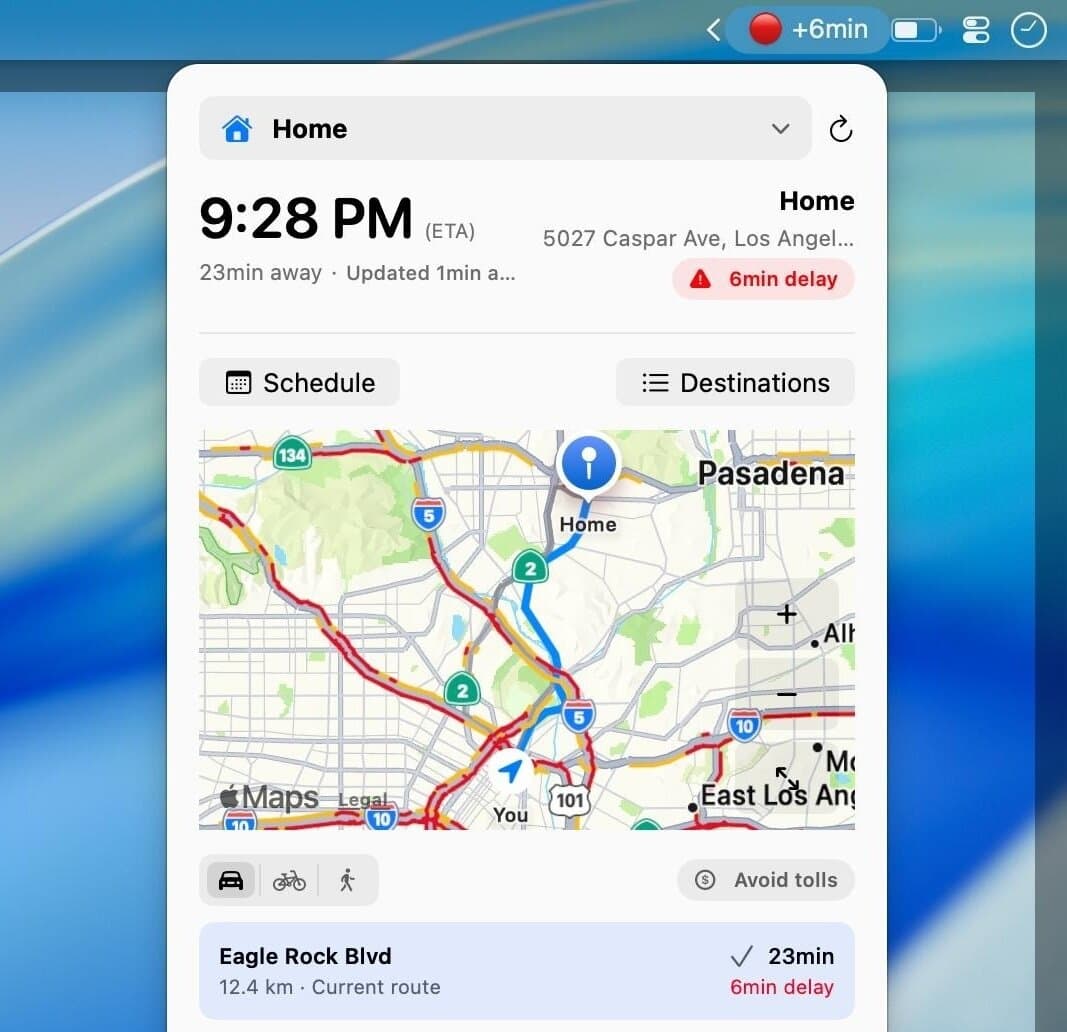
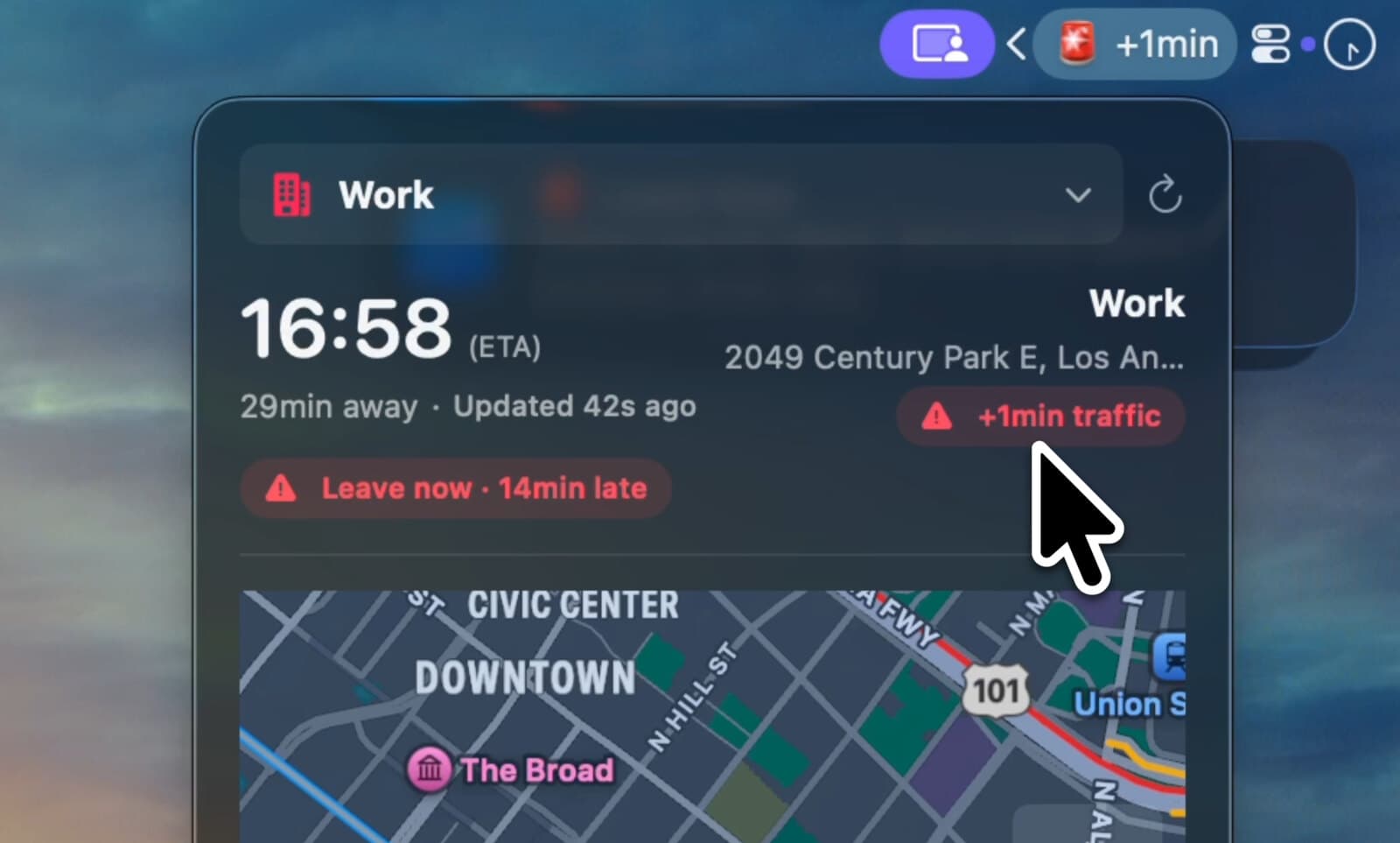
CommuteBar lives in your macOS menu bar instead of the Dock, keeping your current commute time one glance away. Check traffic before you grab your keys without opening Maps or switching away from what you are doing.
The menu bar display adapts to what matters right now: your travel time when traffic is normal, a red delay indicator when congestion builds, a clock or alarm when it is time to leave, and “Here” once you arrive.
- See your current travel time at a glance, with a delay indicator when traffic adds five minutes or more.
- Hover for the full breakdown, including travel time, traffic delay, leave-by time, and when the estimate was last refreshed.
- Click to open the commute popover with your route map, alternate routes, and destination switcher.
- Updates automatically every five minutes by default, every minute during your commute window, and whenever you move about 500 meters.
Multiple destinations
Add Home, Work, School, Gym, and more places you commute to. Then, quickly switch between them, or schedule it automatically. No need to make events.
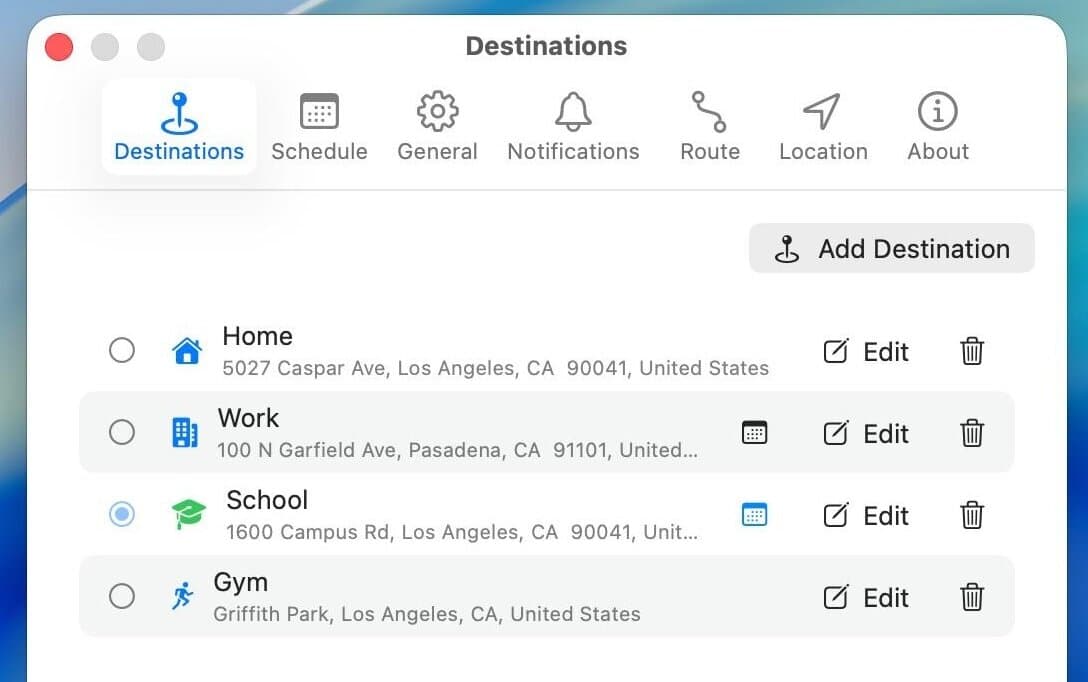
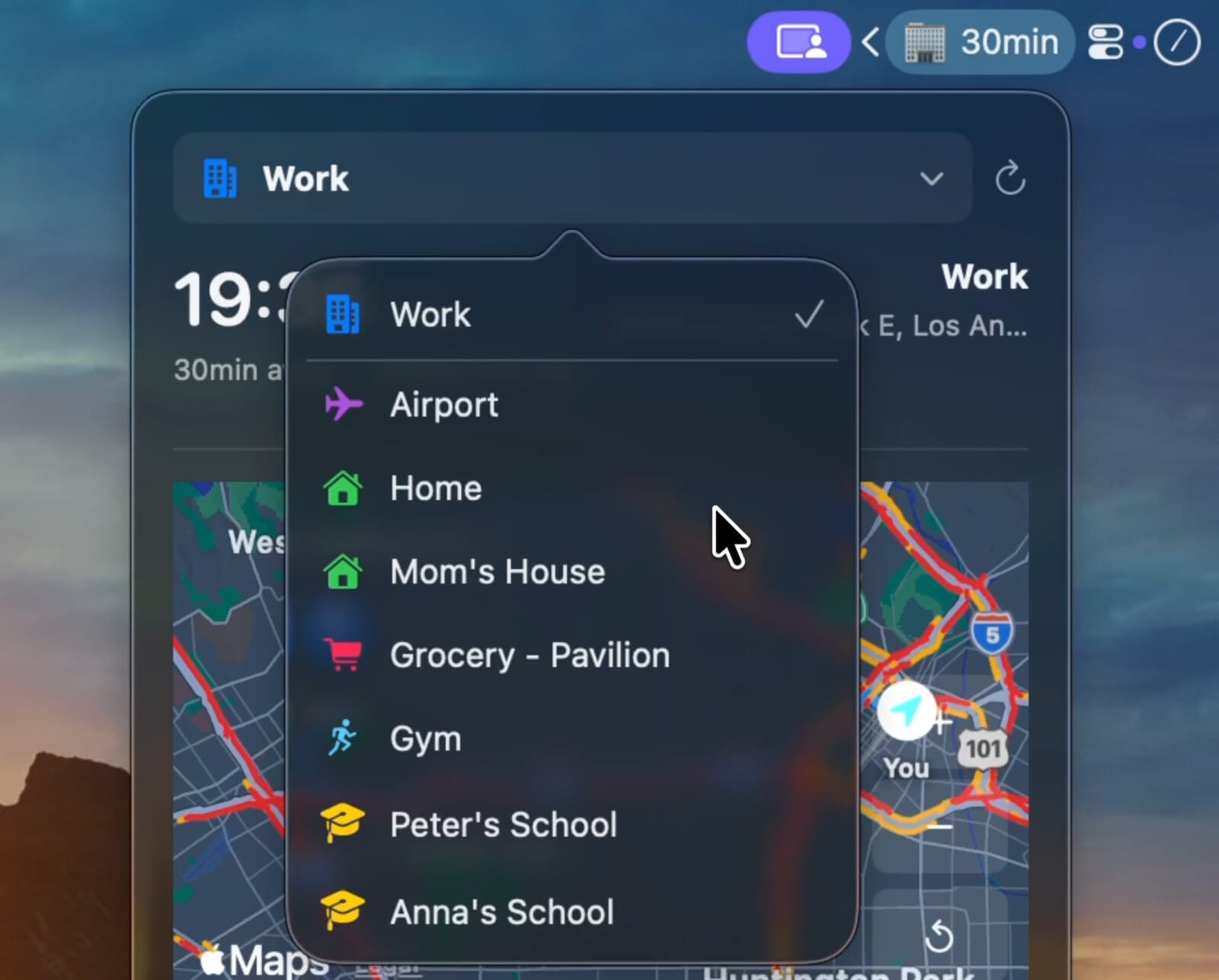
Save the places you commute to most and switch between them in a click. CommuteBar monitors one destination at a time and keeps its live travel time visible in your menu bar.
With Auto Commute Schedule enabled, CommuteBar can switch destinations automatically when a commute window begins, so your morning drive to work and afternoon school pickup appear at the right time. No calendar events required.
- Add destinations with Apple Maps address search, then customize each one with a name, category, icon, and color.
- Switch the active destination anytime from the menu bar popover or Settings.
- Drag to reorder your destinations. CommuteBar remembers the last one you were monitoring between launches.
Drive, bike, or walk
Choose how you travel. Avoid tolls or highways when you drive. Switch to a faster route when it shows up.
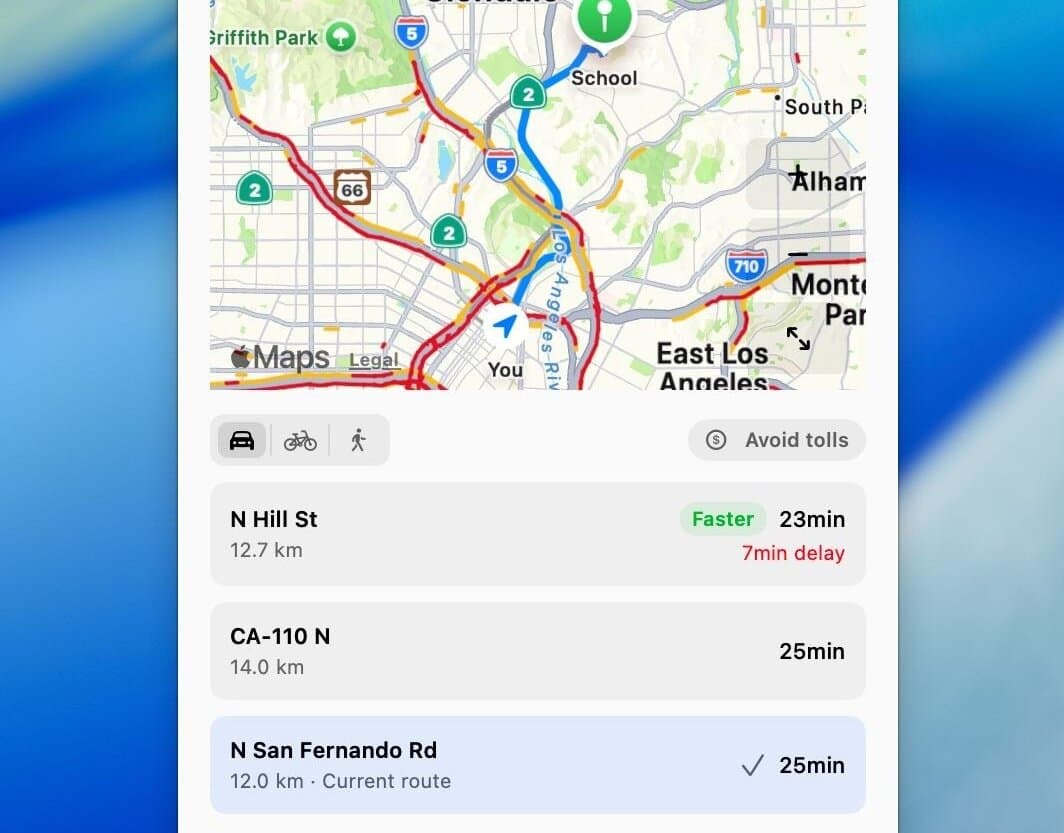
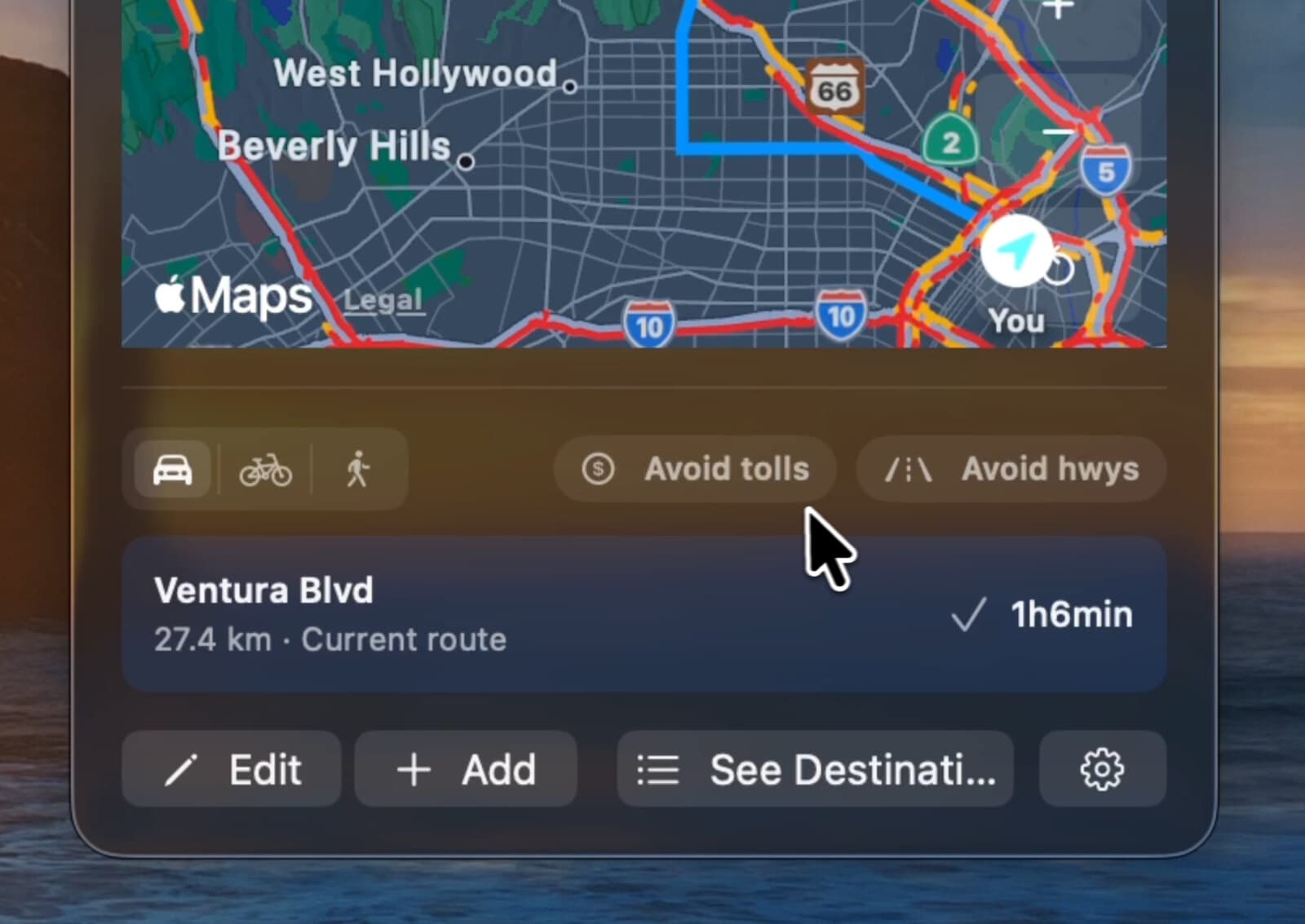
Each destination has its own Travel by mode: Car, Bike, or Walk. Driving estimates use live traffic; bike and walk estimates use Apple Maps routing for those modes.
For driving, CommuteBar can request alternate routes and show how much time each one saves. Changing a route preference triggers a fresh estimate immediately.
- Travel mode is set per destination, so a bike commute to work and a drive to daycare can coexist.
- Driving routes can avoid tolls and highways.
- When Apple Maps finds a faster alternate, switch to it with one click from the popover.
Schedule commute windows
Set when you need to arrive. Drag commute windows across the week. CommuteBar tells you when its time to go.
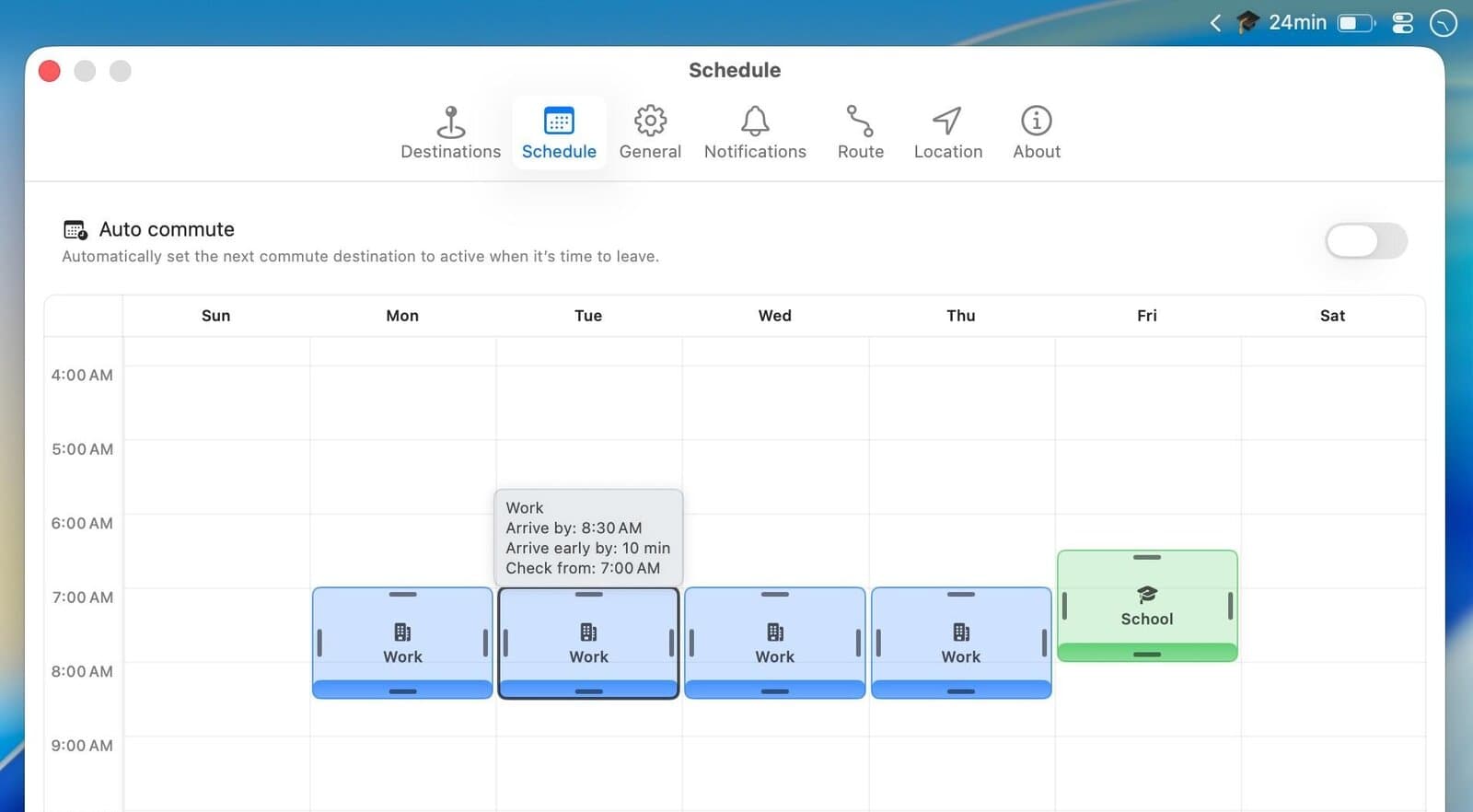
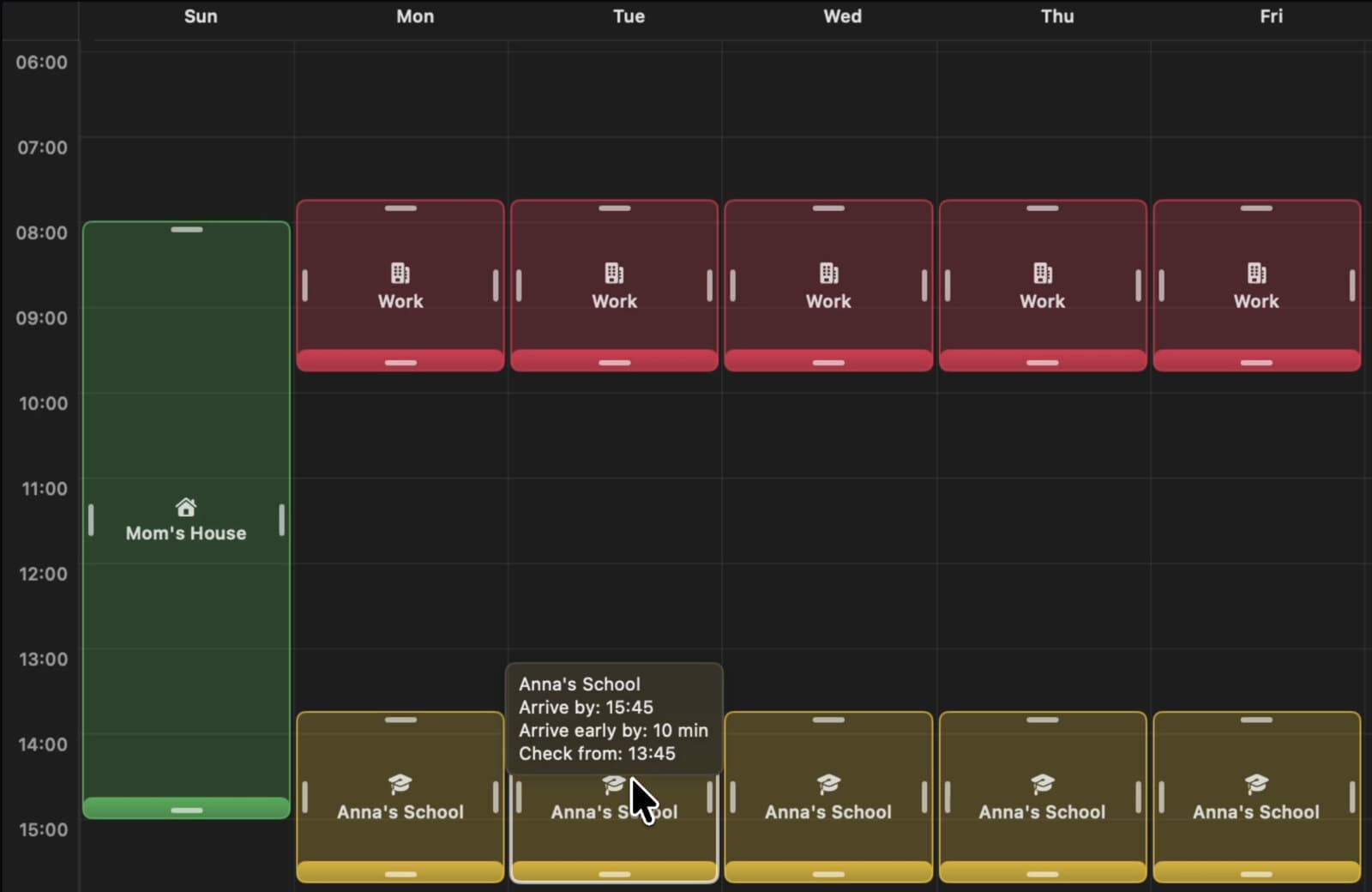
A commute window tells CommuteBar when you need to be somewhere. Using your arrival time and live travel conditions, it calculates when you should leave and keeps that time updated as traffic changes.
During a commute window, the menu bar and popover progress through Leave by, Leave soon, and Leave now. If your leave-by time passes, CommuteBar shows whether leaving right now would still get you there early, on time, or late.
Create commute windows in the destination editor, or drag them across the week in Settings → Schedule.
- Arrive by: set the time you need to be there. Overnight commute windows are supported.
- Arrive early by: add a 0 to 30 minute buffer so your leave-by time is safely ahead of the deadline.
- Check from: choose how far in advance CommuteBar starts monitoring traffic, with two hours as the default.
- Repeat on weekdays, every day, selected days, or just once.
Get notified when to leave
Leave soon, leave now, and get a heads-up when traffic spikes. No need to open another Maps app.
Notifications are optional and off by default. When enabled, CommuteBar sends concise macOS alerts with the information you need, such as: “Leave by 8:15 AM for School. Drive time 22 min.”
Choose which days to receive alerts (weekdays, every day, or custom days) and set quiet hours. You can also pause notifications for the day or turn them off entirely in Settings at any time.
- Leave Soon: get a heads-up about 15 minutes before your leave-by time, including the current travel time.
- Leave Now and Running Late: know when it is time to go, or when leaving later could make you late.
- Commute Delayed and Commute Improved: get notified when travel time changes by 5, 10, or 15 minutes, based on the threshold you choose.
- Better Route Found: see when an alternate route could save about five minutes or more.
- Arrived: get a notification when you reach your destination during a commute window.
Your location stays private
Apple Maps runs on your Mac. We never see your location.
Routes are calculated using Apple Maps on your Mac. Your location and saved destinations are never sent to us or stored on our servers.
CommuteBar does not use analytics to track your movements and does not operate a server that stores your routes. Read the full details in our Privacy Policy.
- No account or login required. Install CommuteBar and start using it right away.
- Location access is used to calculate routes. Background location access is optional and enables commute updates when CommuteBar is not active.
- Review or change location permissions anytime in System Settings.
Ready to try CommuteBar?
Buy direct or on the Mac App Store. Same app.
Lifetime deal. No subscription.
Requires macOS 14 Sonoma or later.
Questions? See the FAQ, visit Support, or read our Privacy Policy.